close
Choose Your Site
Global
Social Media
Views: 0 Author: Site Editor Publish Time: 2026-08-25 Origin: Site
A failing access system locks you out and leaves your property vulnerable. Whether you manage a short-term rental or just want to get inside your own house, an unresponsive keypad is a massive headache. The hardest part is figuring out exactly what broke. You have to tell the difference between a physically jammed deadbolt, a dropped Wi-Fi connection, a stripped internal gear, or a guest who just does not know how to wake up the screen. Guessing leads to wasted money on parts you do not need. Sometimes, forcing a jammed thumb turn permanently destroys the internal motor. We will walk through a systematic approach to get your door open right now. You will learn how to isolate the exact hardware or software failure, apply the right technical fix, and figure out if your Smart Lock needs a permanent replacement.
Mechanical vs. Digital: Over 50% of smart lock failures stem from physical door misalignment or initial installation errors rather than software or electrical defects.
Power Management: Rapid battery depletion is a primary indicator of mechanical friction or poor network connectivity forcing the lock to overwork.
User & Guest Error: Many reported "failures" (especially in rental properties) are actually due to unfamiliarity with keypad wake-up sequences or delayed access code synchronization.
Security Implications: Bypassing jammed smart locks using improper methods can permanently damage the internal motor and void manufacturer warranties.
Repair vs. Replace Threshold: Persistent motor grinding, frequent network drops, or obsolete firmware indicate the lock has reached the end of its lifecycle and poses a security vulnerability.
Table of Contents
Effective troubleshooting starts by defining what a fully operational device looks like. Success means consistent mechanical actuation, immediate network response, accurate status reporting inside the mobile application, and seamless user access. When one of these elements fails, isolating the exact system is the fastest path to getting the door open. Randomly resetting the device or swapping batteries without identifying the category of failure usually masks underlying structural issues.
To streamline the repair process, segment your troubleshooting into four distinct diagnostic paths. This prevents you from wasting time debugging router settings when the actual issue is physical friction inside the wooden door frame.
Diagnostic Category | Primary Symptoms | Common Root Causes |
|---|---|---|
Mechanical | Grinding noises, jammed deadbolt, failure to fully extend. | Physical door hardware shifting, strike plate misalignment, shallow frame holes. |
Electrical | Rapid battery drain, complete unresponsiveness, low-voltage warnings. | Incorrect battery chemistry, corroded terminals, motor working against friction. |
Digital | App shows offline, remote commands fail, delayed notifications. | 2.4GHz vs 5GHz router conflicts, outdated firmware, physical signal interference. |
Access Management | Valid codes rejected, keypad remains dark, guest entry fails. | User error on wake-up sequence, cloud-to-device sync delays, expired permissions. |
The device becomes unresponsive, emits frequent low-battery audio warnings, or drops off the local network unexpectedly. You might find yourself replacing batteries every three weeks instead of the standard six to twelve months.
Rapid depletion is rarely a defective circuit board. It is typically caused by the use of incorrect battery types. Mixing lithium and alkaline cells causes voltage misreporting. Extreme temperature fluctuations also degrade battery performance. Most commonly, the internal motor is working against physical friction in the door frame, requiring excess amperage to throw the heavy metal deadbolt.
Standardize your battery usage according to manufacturer specifications. Most brands require high-quality alkaline batteries. Lithium batteries maintain a high voltage until they suddenly die, which bypasses the low-battery warning system entirely. Clean the battery terminals with a cotton swab and isopropyl alcohol to remove any invisible corrosion or manufacturing residue. Establish a preventative maintenance schedule to replace batteries before they reach critical levels, and ensure the deadbolt throws smoothly by hand to rule out friction.
Battery Type | Voltage Curve | Best Use Case | Warning System Compatibility |
|---|---|---|---|
Alkaline (Standard) | Gradual decline | Everyday residential use | Excellent (Accurate app warnings) |
Lithium | Flat, then sudden drop | Extreme cold environments | Poor (Lock dies without warning) |
Rechargeable (NiMH) | Lower starting voltage (1.2V) | Not recommended | Causes false low-battery alerts |
The system attempts to lock but jams halfway, reverses automatically, or reports a "jammed" error in the mobile app. You will often hear the motor straining heavily before it gives up and retracts.
Installation errors are the primary culprit here. The deadbolt receiving hole in the door frame is often not deep enough to accommodate the full extension of the bolt. Additionally, seasonal humidity changes or worn weatherstripping can shift the door's alignment over time, causing the bolt to scrape against the metal strike plate.
You need to physically adjust the frame to remove the friction. Follow these steps to correct the alignment:
Perform the "lipstick test" by applying a dry marker or lipstick to the end of the deadbolt.
Close the door completely and turn the thumb turn to extend the bolt against the frame.
Open the door and inspect the mark left on the strike plate. This shows exactly where the bolt is rubbing.
Remove the strike plate and use a wood chisel or a 1-inch spade drill bit to deepen the hole. The hole must have a minimum depth of 1 inch to allow full unobstructed extension.
Reinstall the strike plate, shifting it slightly to match the new alignment. Tighten the screws flush.
You experience an inability to control the access point remotely, execute a remote reset, or receive real-time access notifications. The app constantly shows the device as "offline" or "searching."
Connectivity drops stem from router distance and interference from physical barriers like metal doors, brick walls, or heavy ductwork. Another major issue is band steering. The device may be attempting to connect to a 5GHz network, but almost all access control hardware requires a dedicated 2.4GHz band for wall penetration and stability.
Access your router admin panel and separate your Wi-Fi bands. Create a dedicated 2.4GHz network specifically for your IoT devices. Bind the device's MAC address to this network to prevent band-hopping. If the router is more than 20 feet away, install a Wi-Fi bridge or mesh network node within 10 to 15 feet of the door. Utilize the app's remote reset function only after physical connectivity is stabilized to ensure the firmware registers the new network path.
You notice audible grinding, clicking, or sluggish movement when the deadbolt extends or retracts. The mechanical action feels rough, even when operating the thumb turn manually from the inside.
This indicates stripped internal plastic gears. Long-term use against a misaligned strike plate puts immense torque on these small components. Alternatively, a lack of internal lubrication over years of use causes metal-on-metal or metal-on-plastic friction inside the housing.
Remove the interior escutcheon and apply graphite powder or a Teflon-based dry lubricant to the deadbolt mechanism and tailpiece. Strictly avoid WD-40 or heavy greases. Wet lubricants attract dust and will eventually gum up the internal tumblers. If the grinding persists after lubrication and alignment checks, the internal gearbox is likely stripped. At this stage, you must assess if a complete motor replacement or an entirely new unit is necessary.
Specific numbers do not register, the screen remains dark upon touch, or guests report the system is broken when trying to enter their code.
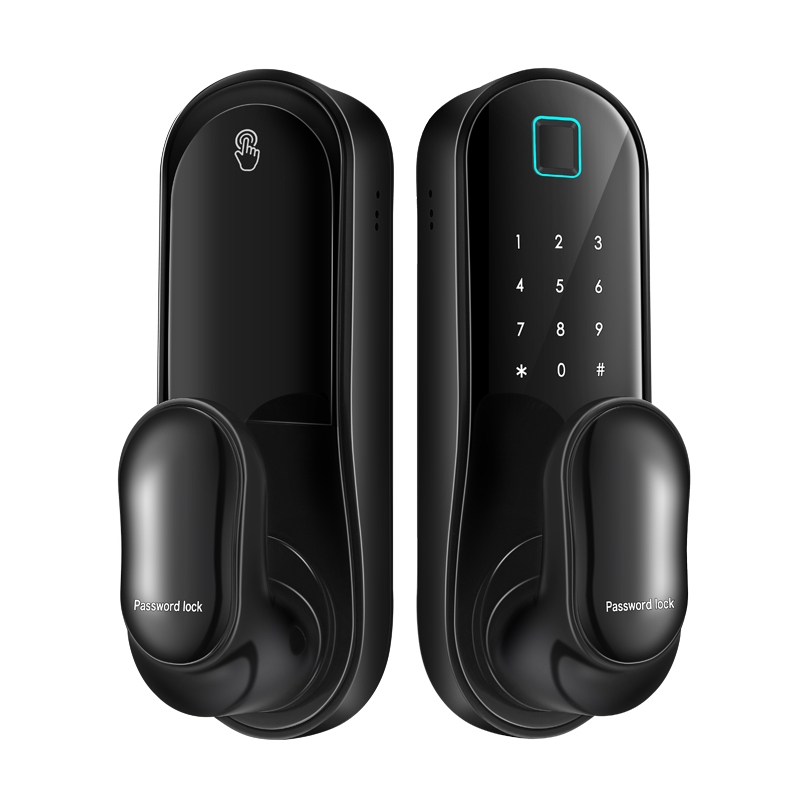
The most frequent cause is user error, specifically failing to use the correct palm-touch wake-up sequence required by many capacitive touchscreens. Hardware causes include a pinched or disconnected ribbon cable during the initial installation, moisture ingress from heavy rain, or a failing digitizer.
First, educate users and guests on the specific wake-up sequence. Many screens require pressing the bottom left corner or placing a full palm over the glass to activate. If hardware is at fault, dismantle the interior housing to inspect the ribbon cable connecting the exterior keypad to the interior logic board. Reseat this cable firmly. Check the housing for condensation. If moisture is present, apply dielectric grease to the wire connections to protect against future outdoor weather exposure.
The hardware functions mechanically but fails to execute automated routines, crashes the mobile app, or rejects newly generated guest access codes despite showing them as active in the dashboard.
Software failures stem from deprecated API connections, pending firmware updates that halt background processes, corrupted local app cache on your smartphone, or cloud-to-device synchronization delays.
Force-close the mobile application and clear the app cache in your phone's settings. Stand within direct Bluetooth range of the door and initiate a manual firmware update. Do not rely on Wi-Fi for critical firmware patches if the connection is unstable. For code failures, delete the problematic code entirely. Force a manual sync between the app and the device to push pending access permissions, and then generate a fresh code.
The system freezes and becomes unresponsive in deep winter, or overheats and shuts down completely in direct summer sunlight.
Extreme cold causes standard alkaline batteries to lose their voltage capacity rapidly, rendering the motor powerless. Thermal expansion during summer causes the wooden door frame to swell, creating severe binding against the deadbolt. Direct sunlight can also trigger thermal protection circuits in the logic board, forcing a temporary shutdown.
Switch to lithium batteries for extreme cold environments, but only if explicitly supported by the manufacturer. Lithium alters the battery percentage reporting, so you must track replacement schedules manually. Adjust the door hinges and strike plate at the change of seasons to account for wood expansion and contraction. If direct sunlight is overheating the exterior keypad, install a small weather shield or awning above the door frame.
The door remains unlocked after the designated time delay, or fails to lock immediately when the door is closed, leaving the property vulnerable.
Auto-lock relies on miscalibrated DoorSense technology or magnetic sensors. If the sensor loses its orientation data, or if the surface-mounted magnet falls off or shifts out of alignment, the logic board does not know the door is closed and refuses to throw the bolt.
Inspect the door frame to ensure the surface-mounted or flush-mounted magnets are securely adhered and perfectly aligned with the internal sensor. Open the manufacturer app and initiate the door calibration sequence. Follow the prompts to recalibrate the open, closed, and ajar states. Disable and re-enable the auto-lock feature in the settings to reset the timer logic.
During a power failure or complete battery death, the physical backup key inserts into the cylinder but will not turn, leaving you completely locked out.
Because the physical keyway is rarely used, it accumulates dirt, dust, and debris over time, causing the pin tumblers to seize. Another common cause is a disconnected or improperly installed tailpiece. If the tailpiece was inserted vertically when the manual called for horizontal orientation, the physical key cannot engage the latch.
Flush the exterior cylinder with a lock-specific dry PTFE lubricant and insert the key several times to work the lubricant into the pins. Never force the key with pliers, as it will snap inside the cylinder. If the cylinder turns but the bolt does not move, remove the interior housing and verify the tailpiece was installed in the correct horizontal or vertical orientation according to the specific model's setup manual.
The device works flawlessly in its native application but fails to respond to voice commands or third-party routines via Apple HomeKit, Google Home, or Z-Wave hubs.
Integration drops are caused by expired security tokens between the native cloud and the third-party hub. For Z-Wave systems, network distance limitations or changes in the physical environment disrupt the mesh network routing. Protocol incompatibility following a hub firmware update can also sever the connection.
Unpair the device completely from the smart home hub and revoke access in the native app's integration settings. Re-pair the device to generate a fresh security token. If using a Z-Wave network, perform a Z-Wave Network Repair or Heal command from your hub's dashboard. This forces all nodes to update their routing tables and find the most efficient path to the door hardware.
Hardware longevity relies heavily on proactive upkeep rather than reactive troubleshooting. Waiting for a system to fail before servicing it guarantees that the failure will happen at the most inconvenient time. Implementing a structured maintenance routine ensures consistent performance and extends the lifespan of the internal motor and logic board.
Establish a strict bi-annual maintenance checklist. Do not wait for the low-battery warning to replace the power source. Swap batteries when they drop below 20% to ensure the motor always has peak amperage available. Clean the exterior keypad with a microfiber cloth and a mild, non-abrasive cleaner to prevent digitizer wear and remove fingerprint buildup, which can reveal your passcode to intruders. Apply a dry Teflon-based lubricant to the deadbolt and the physical keyway every six months to maintain smooth mechanical actuation.
Environmental changes drastically impact door alignment. Check the strike plate alignment at the change of seasons, particularly moving from humid summers to dry winters. Wood expansion and contraction shift the door frame, causing the deadbolt to scrape. Tighten all hinge screws to prevent door sag, which is a leading cause of unnecessary motor strain. Verifying alignment twice a year prevents the internal plastic gears from stripping under pressure.
When persistent issues arise despite thorough troubleshooting, you must determine whether continued maintenance is cost-effective or if the hardware has reached the end of its functional lifecycle. Upgrading is often more secure and reliable than nursing a failing device.
Compare the time and cost of ongoing maintenance against the reliability of upgrading to a commercial-grade or newer generation Smart Lock. Assess criteria such as biometric speed and accuracy. Older capacitive fingerprint scanners degrade over time, whereas newer ultrasonic or optical sensors provide instant access. Evaluate battery efficiency. Modern chipsets utilize Bluetooth Low Energy and advanced power management to extend battery life well beyond older models. Look at network architecture. Upgrading to a unit with native Wi-Fi integration eliminates the need for external wall-plug bridges, reducing the points of failure in your access system.
The decision to replace should be heavily influenced by security vulnerabilities. If the manufacturer no longer pushes firmware updates to your specific model, the device is obsolete and poses a significant network security risk. Persistent motor grinding that cannot be fixed with lubrication indicates irreversible physical damage. In rental property scenarios, the cost of a single guest lockout far outweighs the investment of installing modern, reliable access hardware.
Perform the lipstick test today to verify your deadbolt extends fully without scraping the strike plate.
Log into your router admin panel and create a dedicated 2.4GHz Wi-Fi network exclusively for your access hardware.
Replace your current batteries with high-quality alkaline cells and clean the contact terminals with isopropyl alcohol.
Apply a dry PTFE or graphite lubricant to the physical keyway and deadbolt mechanism to reduce motor strain.
Check your manufacturer app for pending firmware updates and execute them while standing within direct Bluetooth range.
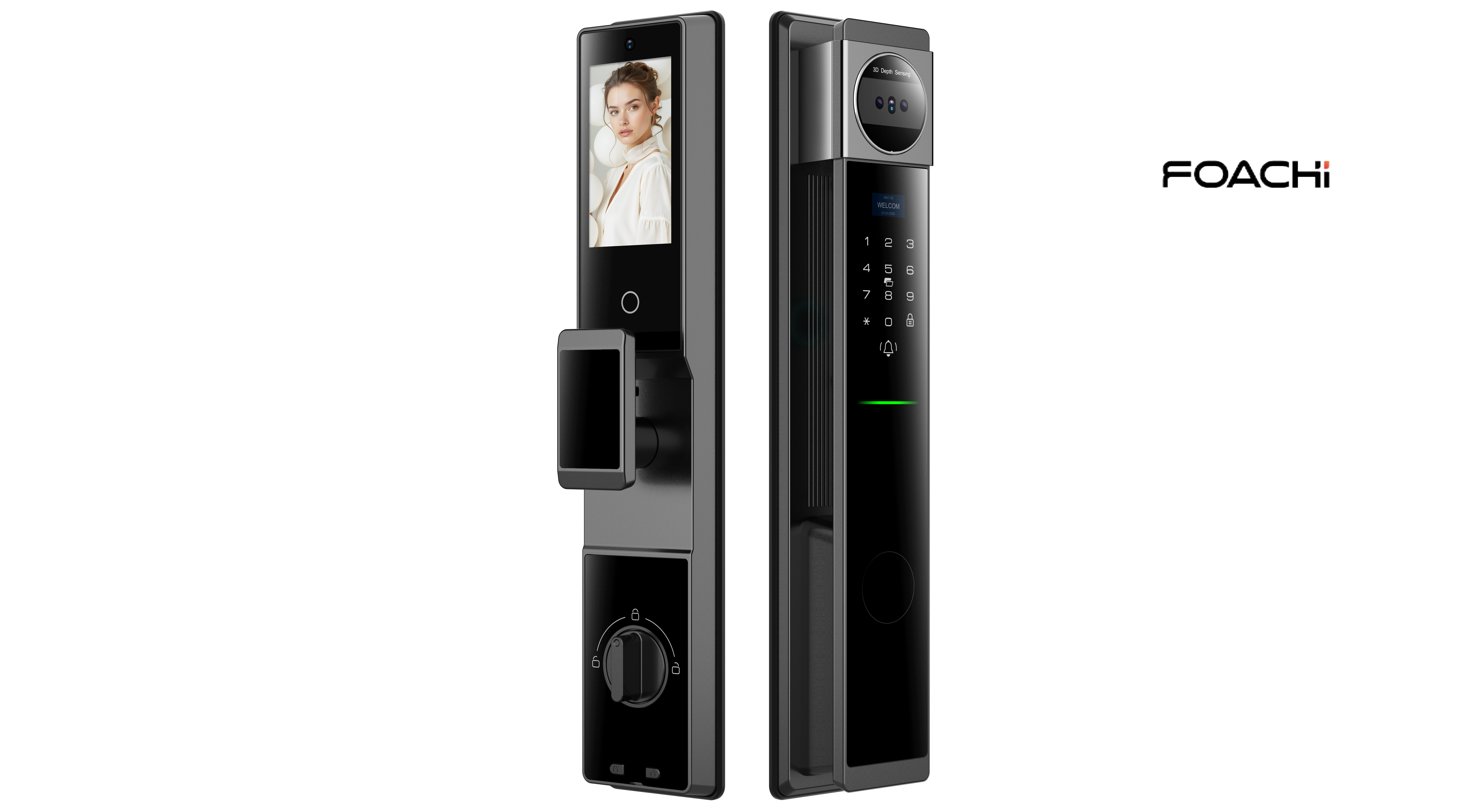
Regular troubleshooting and preventative maintenance can help reduce recurring smart lock problems and extend the service life of your access hardware. Foachi focuses on smart lock and door hardware solutions, providing products designed to support reliable access, practical functionality, and different residential or commercial security requirements.
A: Most models feature a physical key override hidden beneath a faceplate. If your model is keyless, look for two small metal terminals at the bottom of the exterior keypad. Pressing a standard 9-volt battery against these terminals provides enough temporary power to enter your code and unlock the door.
A: Yes. If the deadbolt scrapes against the strike plate, the motor must draw excessive amperage to force the bolt closed. Over time, this extreme torque strips the internal plastic gears, burns out the motor, and drains batteries rapidly, leading to permanent hardware failure.
A: This indicates a calibration error with the door sensors. The internal logic board has lost track of the deadbolt's position. You must open the manufacturer's application, navigate to the device settings, and run the recalibration sequence to reset the open and closed states.
A: Apply a dry graphite powder or Teflon-based lock lubricant every six months. Never use wet lubricants like WD-40, as they attract dust and dirt, which will eventually harden and jam the internal pin tumblers and gears.
A: Cold temperatures rarely cause permanent damage to the logic board, but they severely reduce alkaline battery voltage, causing temporary shutdowns. Once temperatures rise, or if you switch to manufacturer-approved lithium batteries, normal functionality usually returns without lasting defects.
A: Native Wi-Fi means the wireless chipset is built directly into the door hardware, connecting straight to your router. A Wi-Fi bridge is a separate plug-in device that connects to the door via Bluetooth and then bridges that connection to your home Wi-Fi network.